Leer artículo en español
Ver artigo em português
iRead is a Studio add-on designed to support students in developing their English language skills through reading complete books, offering an interactive, progressive, and level-adaptive learning experience.
The objective of iRead is to promote reading comprehension and language learning through structured and accessible content within the platform.

For students to be able to access the books, the teacher must first unlock them and assign them to the class.
How to unlock the books
Select the book you want to activate.
Click on the lock icon to unlock it.

Once unlocked:
- The book will become available to the students..

Viewing the content
Click on the book cover to see its information.
Click on <Open> to access the content directly.

- Books can be marked as favorites using the star icon from <Class Library>:

 |
 |
How do I assign a reading?
To assign a book to the students:
Click on the ( + ) button.

| Plus icon (+) | + Add to assignment |
|---|---|
 |
 |
2. Set the book usage mode:
Reading mode (view only).
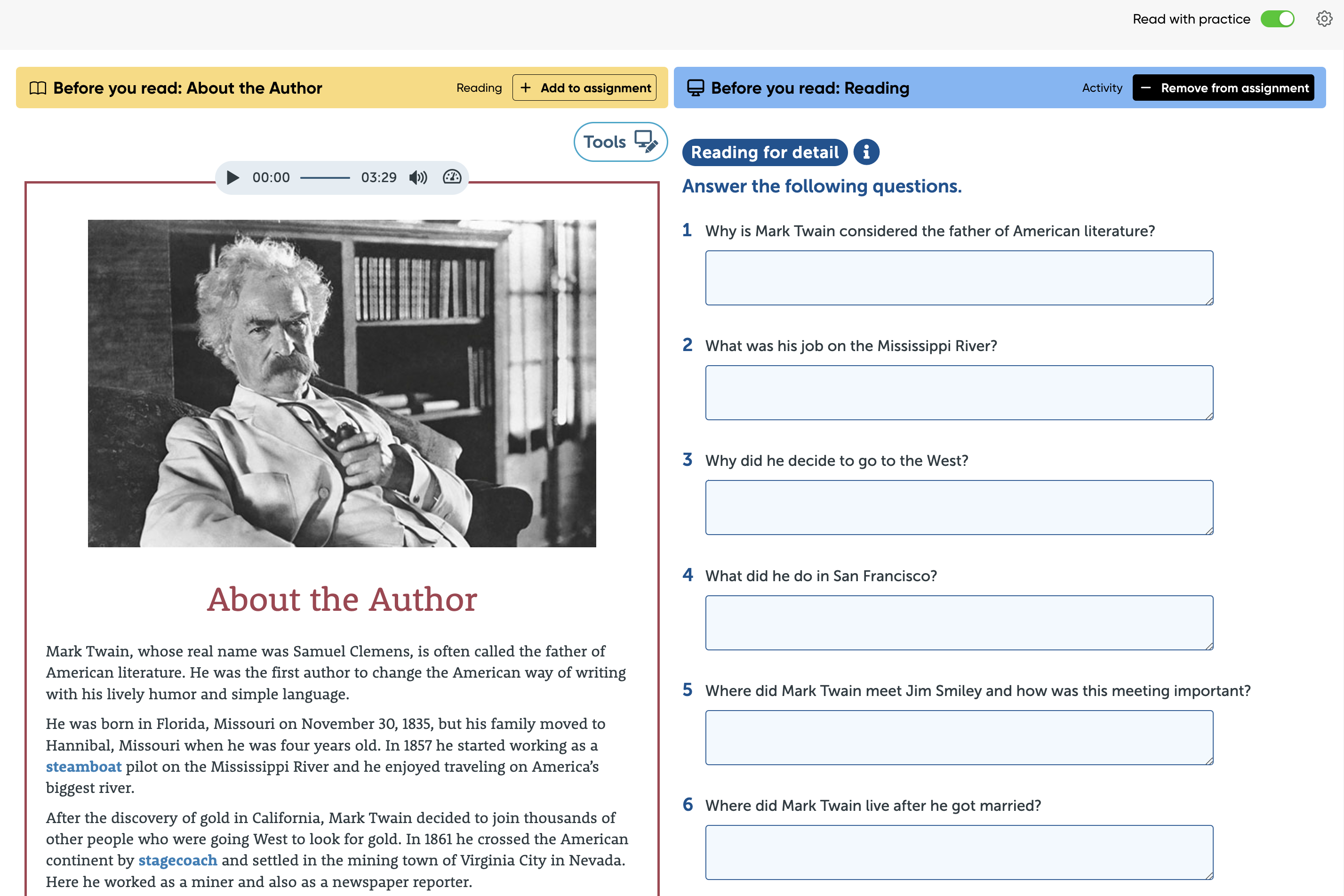
Reading + practice mode (includes activities).

Search and filters
To make it easier to locate books, the module includes:
- Search bar.
- Filters by type of reading.
- Filters by CEFR level (Common European Framework of Reference).
Search bar |
Filters by type of reading |
Filters by CEFR level |
|---|---|---|
 |
 |
 |
These filters allow you to quickly and accurately find content according to the student’s level and needs.
Settings
From the Settings option, you can change the font type and size, as well as the background color.
Click the gear icon to make changes to the font type, font size, and apply a colored background for reading. |
 |
 |
Herramientas
Existen herramientas disponibles que mejoran la experiencia de aprendizaje, permitiendo a los estudiantes interactuar activamente con el texto y personalizar su estudio según sus necesidades.

| Icon | Description |
|---|---|
 |
Redo: if you accidentally undid an underline, highlight, or note, you can use Redo to reapply it. |
 |
Hide: helps clear the text view to focus on the original content without visual distractions. |
 |
Undo: removes actions such as underlines, highlights, or notes that were added accidentally or are no longer needed. |
 |
Notes: allows you to add custom comments in the margin or in specific sections of the book. This is useful for writing explanations, additional examples, ideas, or reminders related to the content. |
 |
Delete: removes only the markings made without affecting the rest of the content. |
 |
Highlight: Helps distinguish important sections of the content by using bright colors, improving the visual organization of the text and information retention. |
 |
Underline: Allows you to mark important words or phrases within the text to make them easier to identify and review later. Ideal for highlighting key vocabulary or specific grammatical structures. |
Benefits
- Encourages the habit of reading in English.
- Provides content adapted to the student’s level.
- Supports both autonomous and guided learning.
- Facilitates the management of reading activities for teachers.
- Improves access to digital educational resources.
Consider:
- Books must be unlocked before they are visible to students.
- It is recommended to validate the reading mode before assigning.
- Using filters significantly improves navigation.