Leer artículo en español
Ver artigo em português
Notifications within the platform enable constant and organized communication with students, groups, and relevant activities.
How to view notifications?
- Received notifications will appear with a red numeric badge on the bell icon located in the upper-right corner of the platform.
- This number indicates the total of new notifications.
- When there is a new notification or an unread one, the system will automatically highlight it to make it easier to identify.

How do I check notifications?
- Click the bell icon to access the notifications panel.
- A summary view of recent notifications will be displayed.
- To view the full history, select the option <View all notifications.

Notification management
Within the full notifications section, you can:
- View all new or unread notifications, identified by a red dot.
- Review previously opened notifications.
- Use search filters by:
- Group
- Type
These filters help you locate specific messages more quickly and efficiently.
How to view and respond to notifications?
- Click on any notification to open its full content.
- If a response is required, select the <Reply> option to send a response directly from the platform.

| Filtro de grupo | Filtro de tipo |
|---|---|
 |
 |


How to send messages to students?
To create a new communication:
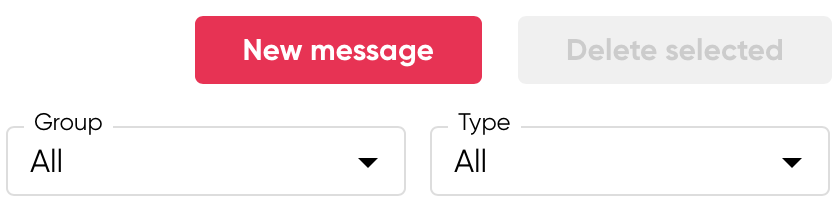
- Click New message.

3. Go to the Content section and fill in the required information.
- Título
- Descripción del mensaje

How to delete notifications?
If you want to delete one or more notifications:
- Select a single notification or multiple notifications.
- Choose one of the following options:
- Delete selected to remove multiple notifications at once.
- Click the trash bin icon to delete a specific notification.
- The system will display a confirmation pop-up window.

Important:
- Deleting notifications is permanent and irreversible.
To confirm:
- Click Delete.
If you choose not to continue:
- Select Cancel.
Recommendations
- Check your notifications regularly to stay up to date.
- Use filters to optimize information searches.
- Carefully review before deleting important notifications, as they cannot be recovered later.