Leer artículo en español
Ver artigo em português
iRead is a Studio add-on designed to support students in developing their English language skills through reading full books, offering an interactive, progressive, and level-adapted learning experience.
The goal of iRead is to foster reading comprehension and language learning through structured and accessible content within the platform.

Access to books
For students to access the books, the teacher must first unlock them and assign them to the class.
How to unlock books
- Select the book you want to activate.
- Click on the lock icon to unlock it.

Once unlocked:
- The book will be available to students.

Content visualization
- Click on the book cover to view its details.
- Click on <Open> to access the content directly.

Books can be marked as favorites using the star icon from <Class Library>:

 |
 |
How do I assign a reading?
To assign a book to students:
- Click on the ( + ) button.

| Plus icon (+) | +Add to assignment |
|---|---|
 |
 |
2. Configure how the book will be used:
- Reading mode (view-only).
- Reading + practice mode (includes activities).

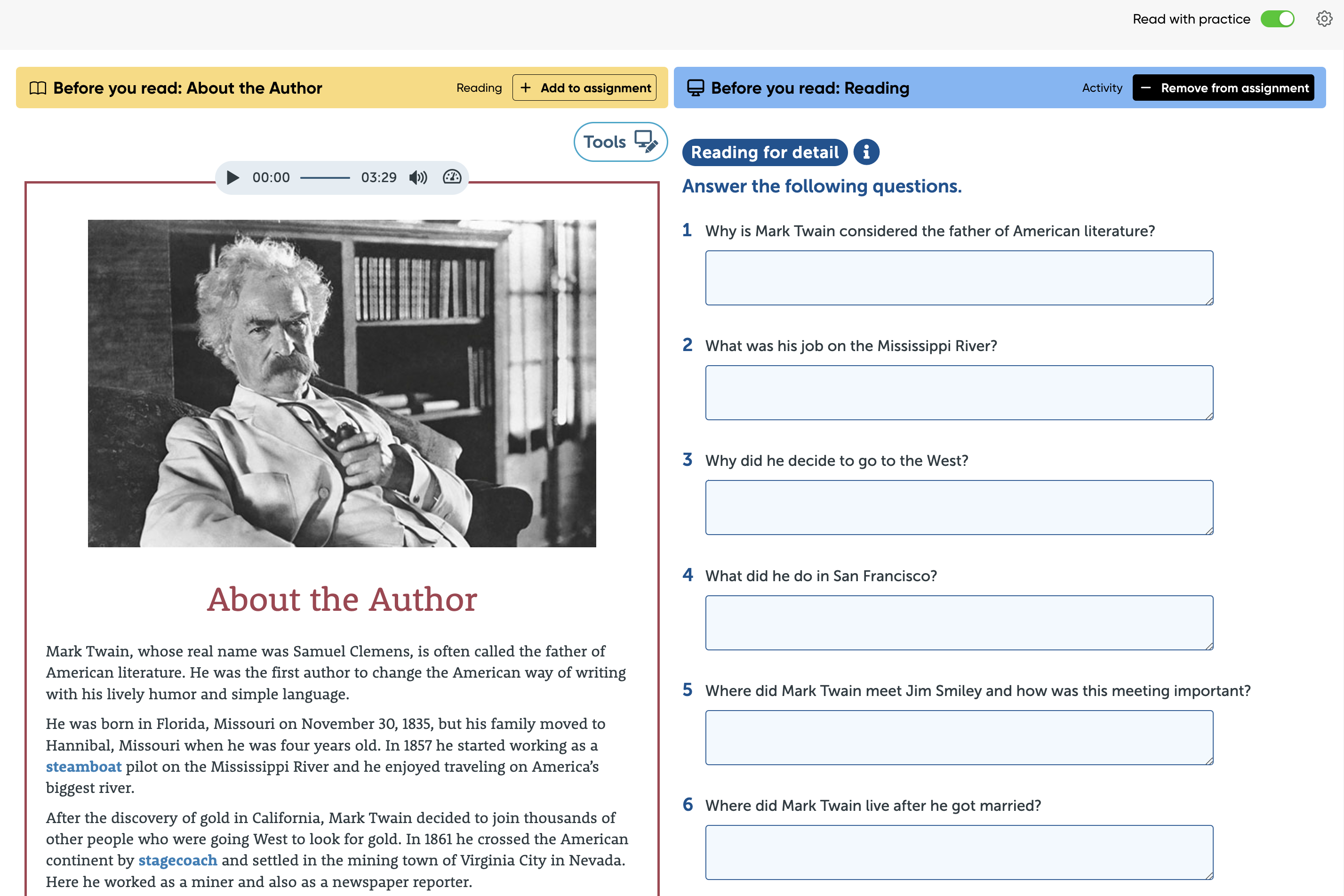
Search and filters
To make it easier to find books, the module includes:
- Search bar
- Filters by reading type
- Filters by CEFR level (Common European Framework of Reference)
| Search bar | Filters by reading type | Filters by CEFR level |
|---|---|---|
 |
 |
 |
These filters allow users to quickly and accurately find content based on the student’s level and needs.
Settings
From the Settings option, you can change the font type and size, as well as the background color.
Click on the gear icon to make changes to the font type, font size, and to apply a background color to the reading. |
 |
 |
Tools
There are tools available to enhance the learning experience, allowing students to actively interact with the text and personalize their study according to their needs.

| Icono | Descripción |
|---|---|
 |
Redo: If you accidentally undo an underline, highlight, or note, you can use Redo to apply it again. |
 |
Hide: helps clear the text view to focus on the original content without visual distractions. |
 |
Undo: removes actions such as underlines, highlights, or notes that were added accidentally or are no longer needed. |
 |
Notes: Allows users to add personalized comments in the margin or in specific sections of the book. This is useful for writing explanations, additional examples, ideas, or reminders related to the content. |
 |
Delete: specifically removes the applied markings without affecting the rest of the content. |
 |
Highlight: Helps differentiate important sections of the content using bright colors, improving the visual organization of the text and information retention. |
 |
Underline: Allows you to mark important words or phrases within the text to make them easier to identify and review later. Ideal for highlighting key vocabulary or specific grammatical structures. |
Benefits
- Promotes the habit of reading in English.
- Offers content adapted to the student’s level.
- Supports both autonomous and guided learning.
- Facilitates reading management for teachers.
Consider:
- Books must be unlocked before they are visible to students.
- It is recommended to validate the reading mode before assigning.
- Using filters significantly improves navigation.